
Using Moverly with SME Pro
Once your Moverly account is integrated with SME Pro, you can onboard properties directly from your SME Pro portfolio.
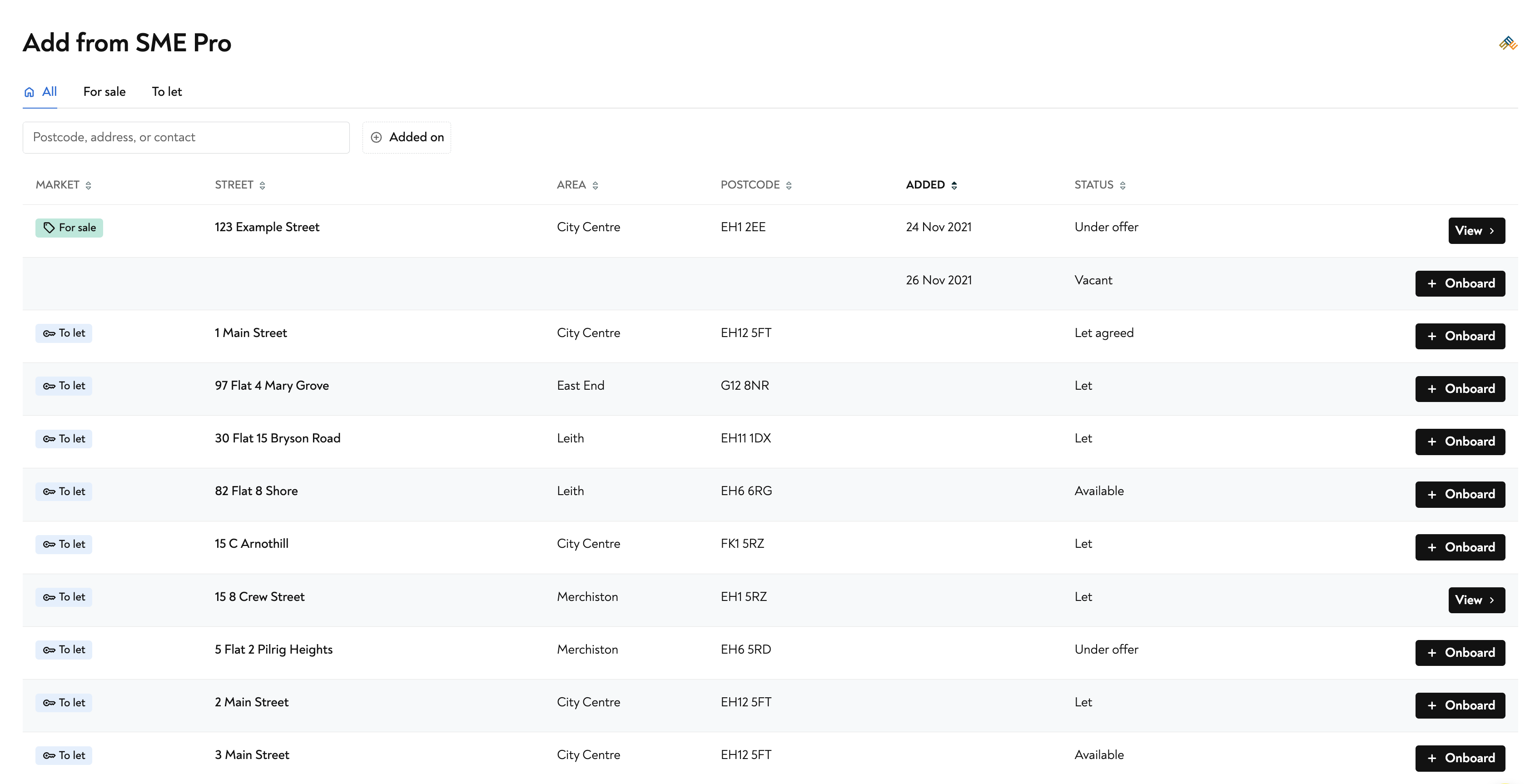
From Moverly, click the Add from SME Pro button to view a list of your SME Pro properties. Find the property you want to work on and click Onboard.
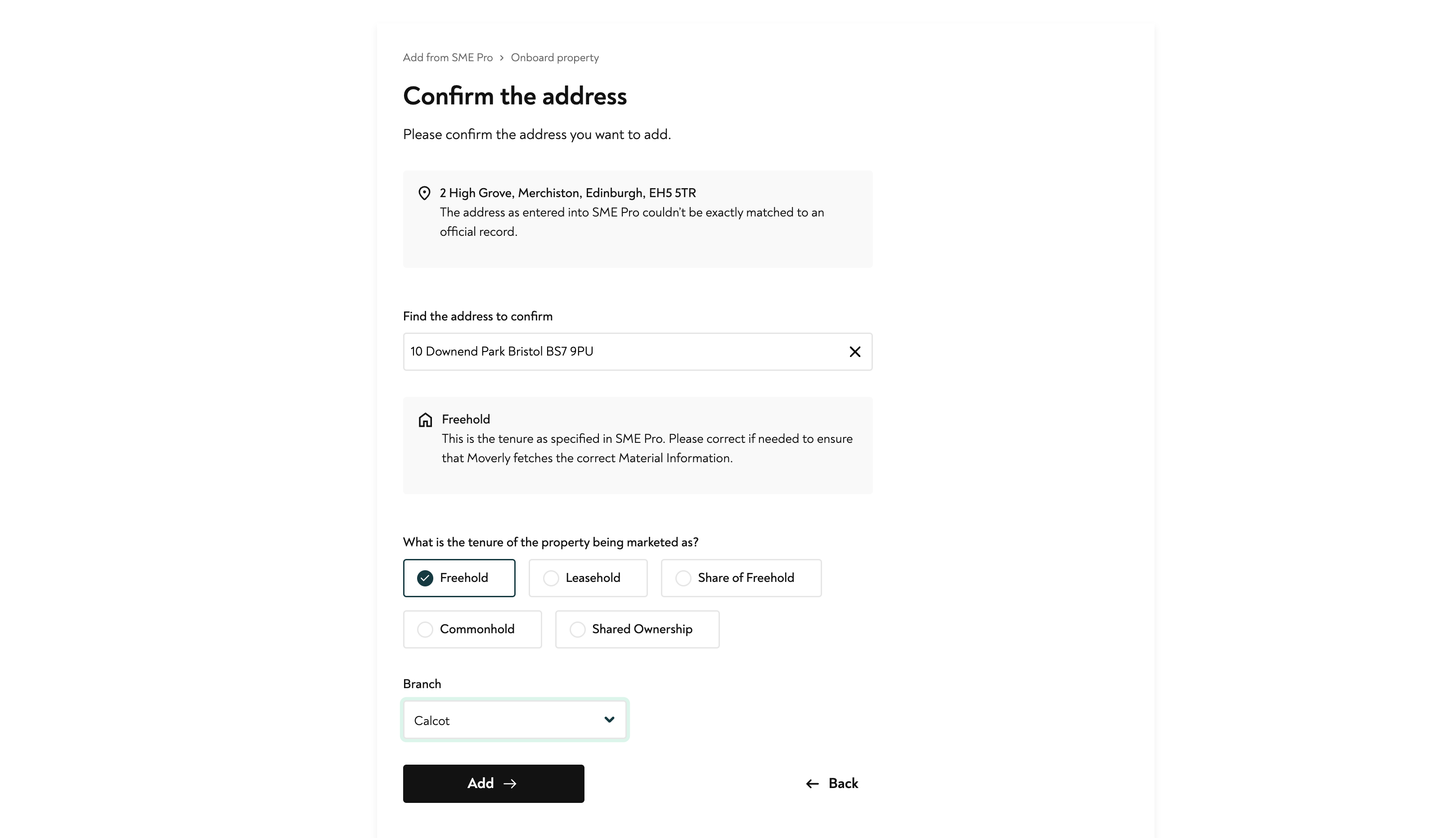
You'll be prompted to confirm the property's Tenure and, if applicable, your Office. Once confirmed, you'll be taken to the property dashboard.
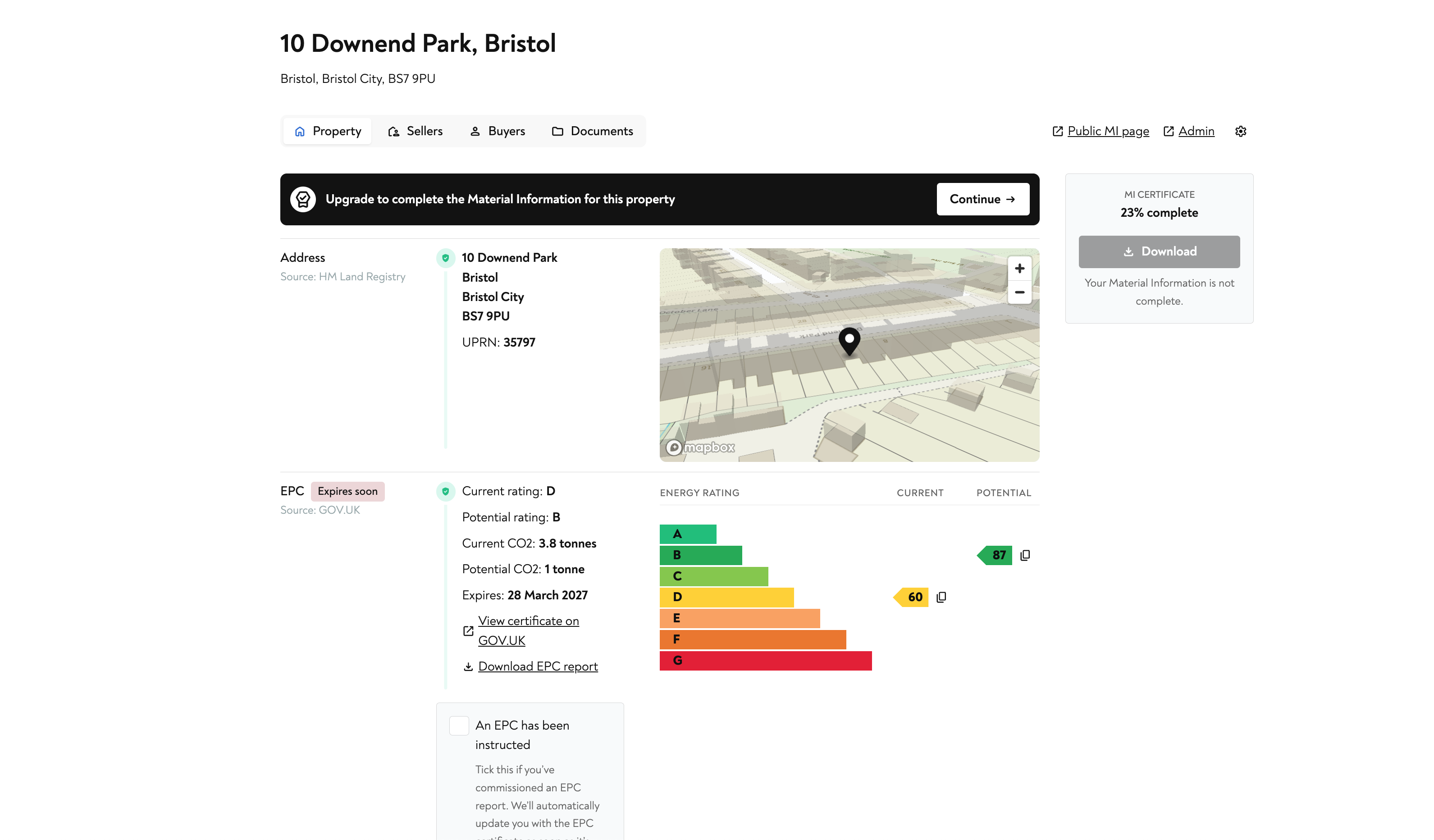
Your are then taken to the property dashboard, at this point the EPC file will be sent back to the property in SME Pro. When ready to invite vendors for Material Information, AML or Digital Sale Ready, click the "Continue" button.
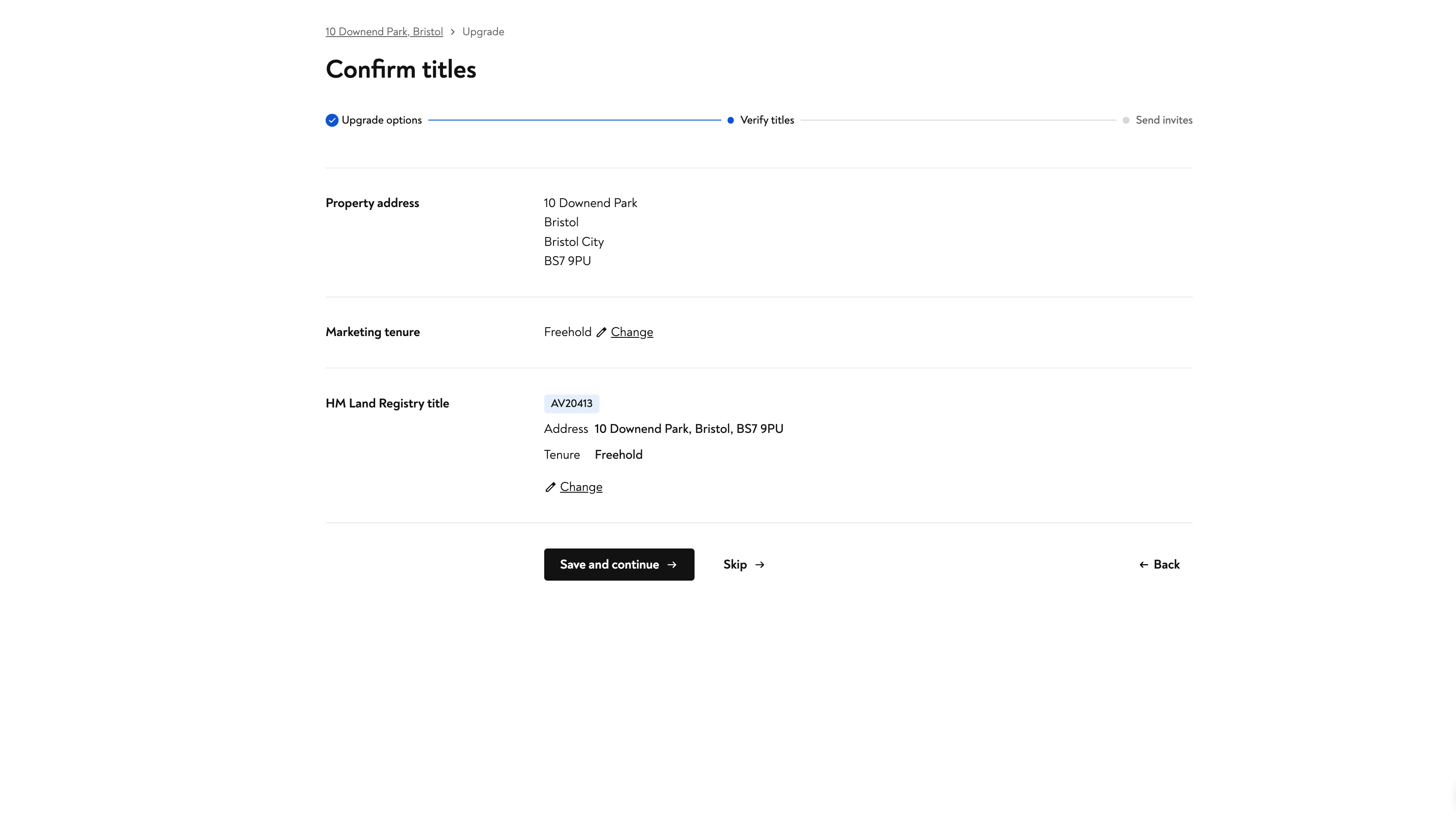
You will then be prompted to select the property's title - this is usually picked for you.
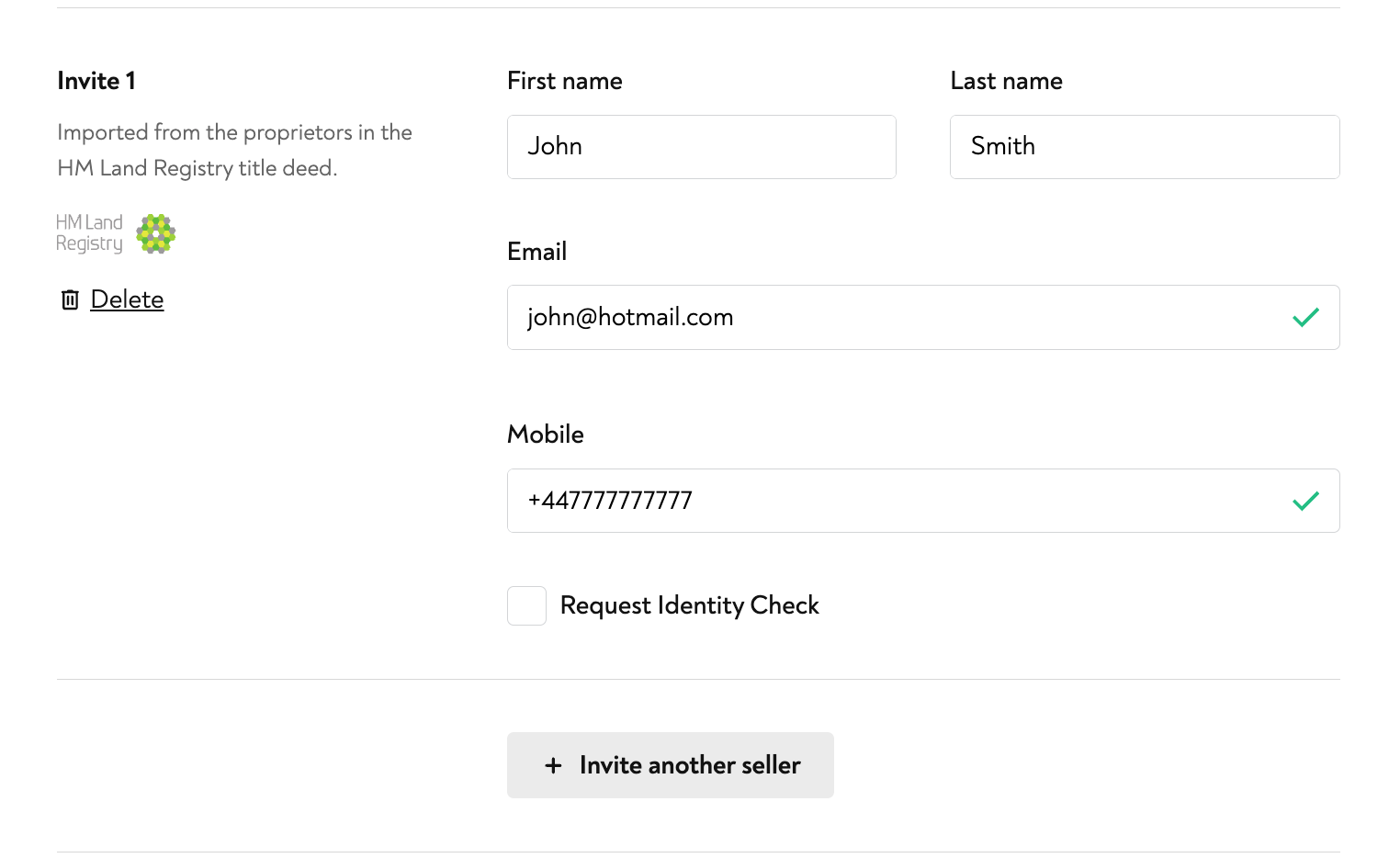
Your vendor details will be automatically populated from SME Pro. You'll also see the HMLR registered proprietor pulled from the title.
If you'd like to include an identity check, tick the relevant checkbox. When you're ready, click Send Invites.
What Happens Next
Your vendor will then be invited to the Moverly journey, they'll be able to complete Material Information, AML and for Digital Sale Ready properties the Local Authority search will be ordered and they will continue through to TA forms and conveyancer instruction. At each stage of completion you will be notified by email, the Material Information Certificate, AML report and any signed terms of business will also get sent back to the property on SME Pro.uthority search order, TA forms, and conveyancer instruction
You'll receive an email notification at each stage of completion. The Material Information Certificate, AML report, and any signed terms of business will also be sent back to the property record in SME Pro automatically.
Adding a Buyer
When you're ready to bring a buyer into the process — for an AML check and/or to continue the Digital Sale Ready journey — head to the Buyers tab on the property dashboard. From there, enter the buyer's details and send them an invitation.