
Understanding the Moverly dashborad
We've made some big improvements to your dashboard to help you find what you need faster and keep track of your properties more easily.
New chip filters
We've replaced the old filter drop downs with chip filters - a quicker, more visual way to narrow down your property list. Just tap the chips to toggle filters on and off.
Tabbed layout
Your dashboard now uses tabs to organise your properties. Every user starts with default "All" tab, showing all your properties in one view.
You can now create custom dashboard tabs and save them to your profile. This means you can set up tabs that work for you.
- For sale: only sale properties
- To let : only lettings
- A tab for each branch
- A tab for properties at a specific stage
- A tab for anything you check regularly
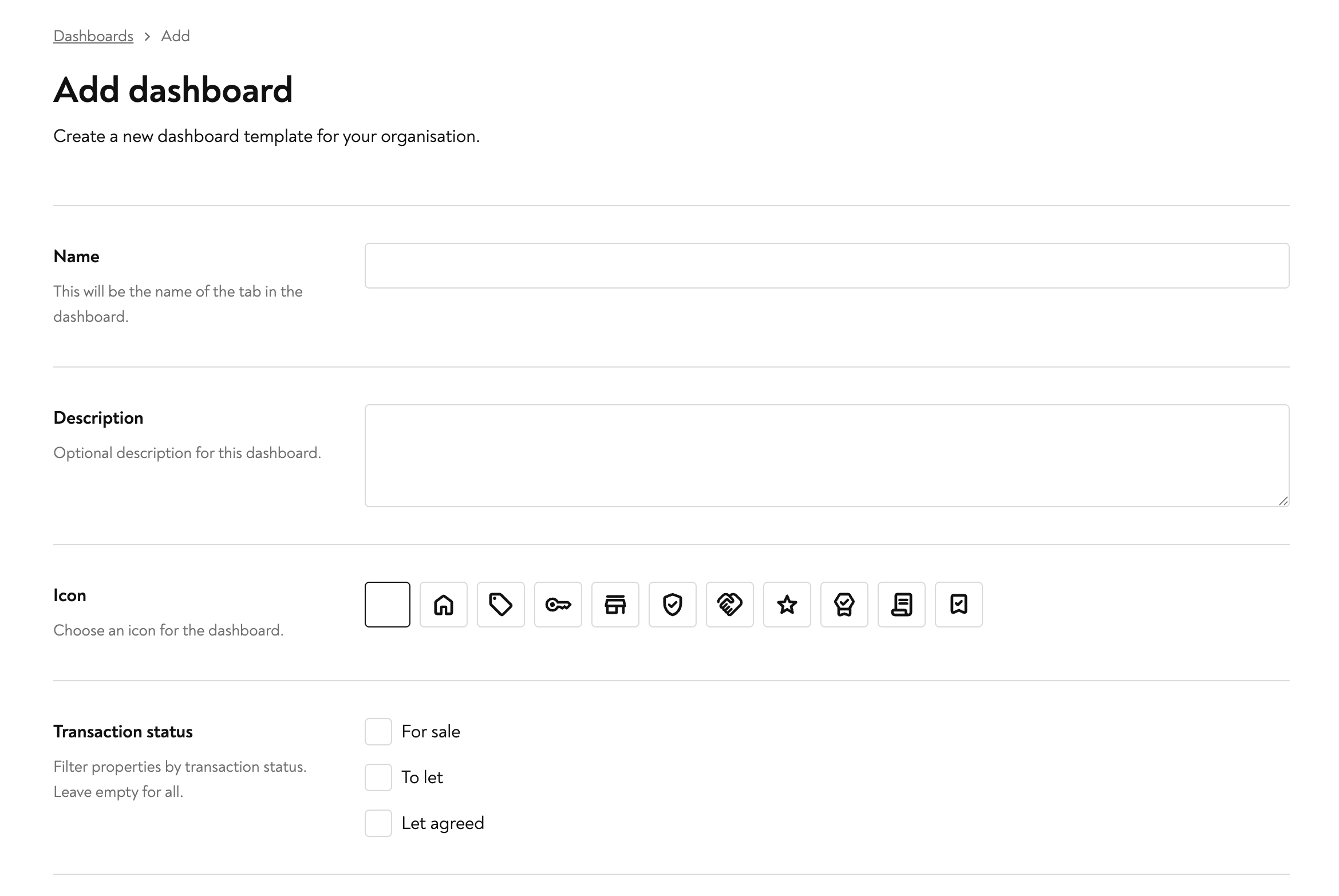
Your custom dashboard tabs are saved against your profile, so they'll be there every time you log in.
Totals
Each tab now shows totals at a glance. This is particularly useful for spotting things like unsigned contracts, you can see immediately if any are outstanding without scrolling through the full list.
Export to CSV/Excel
You can now export your property dashboards to CSV or Excel. Use the filters and tabs to get the view you want, then export.
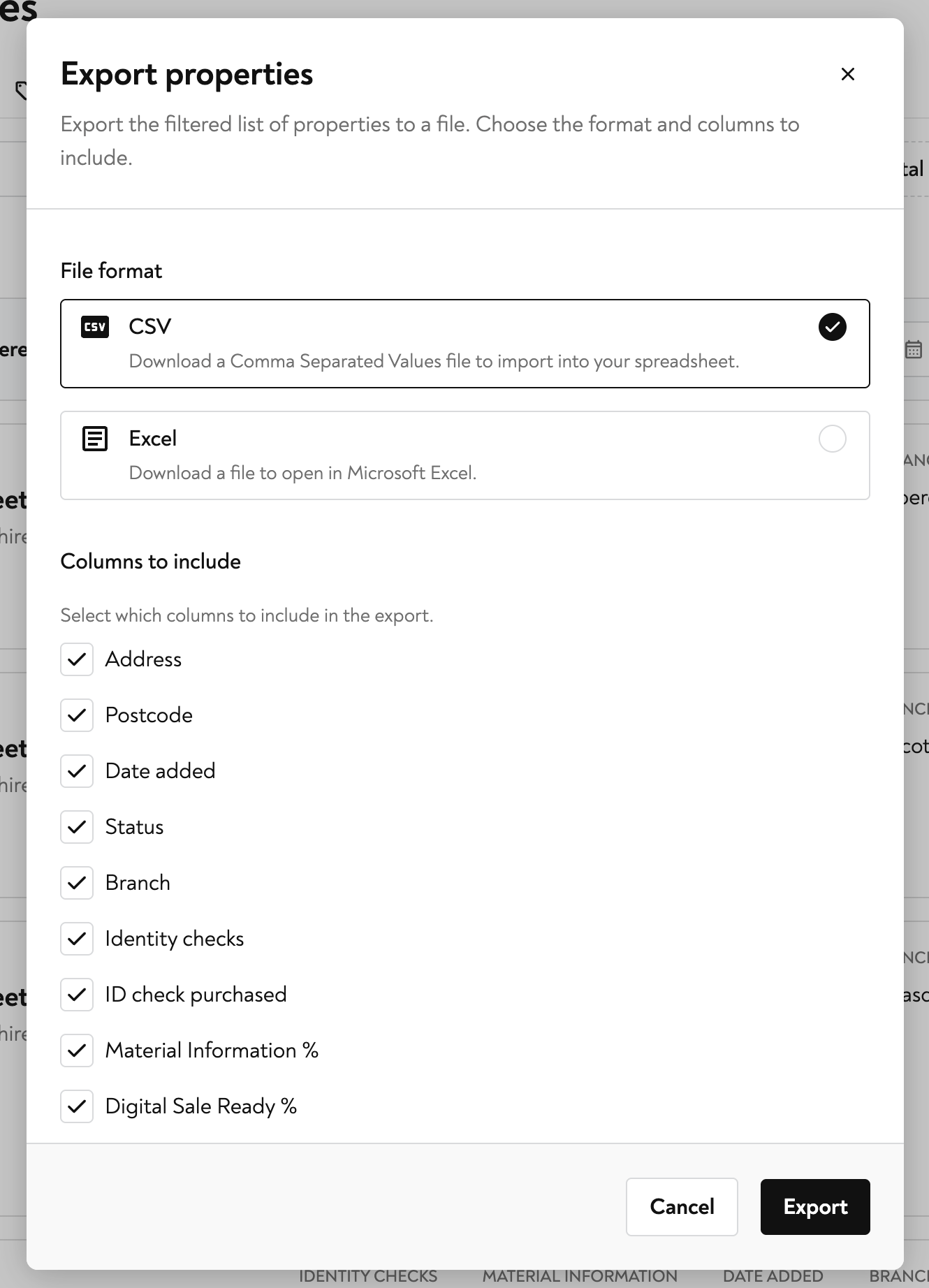
Date range filtering
Need to see properties listed in a specific period? Use the new date range filter to narrow your view by date.
If you have any questions regarding the Moverly dashboard, our friendly support team is always here to help. Simply click the yellow chat button on this page to chat with Mia, or submit a support form.