Using Upfront Intelligence flags
Flags show you what could hold up a sale, and what to do about it, from the day a property is listed. This guide shows where to find them in Moverly and how to read each one.
What flags are
A flag is an issue in a property's information that could cost the sale time or money. Moverly's Diligence Engine raises them automatically once the seller has completed the material information.
The engine reads everything gathered about the property, the title register, the seller's answers, certificates and searches, and works through 340 checks across 37 areas of law. Most checks come back clear. Anything that needs attention becomes a flag.
Every flag has a severity colour:
Red: serious. Likely to delay the sale or affect the price if it is not dealt with. For example, the seller is not named on the title register.
Amber: moderate. Worth resolving early, usually with a document or a clarification. For example, the seller's answers contradict each other.
Flags run on new listings at no extra charge. There is nothing to switch on once your agency is live.
Find flagged properties
The Properties list shows how many flags each property has, so you can see which listings need attention first.
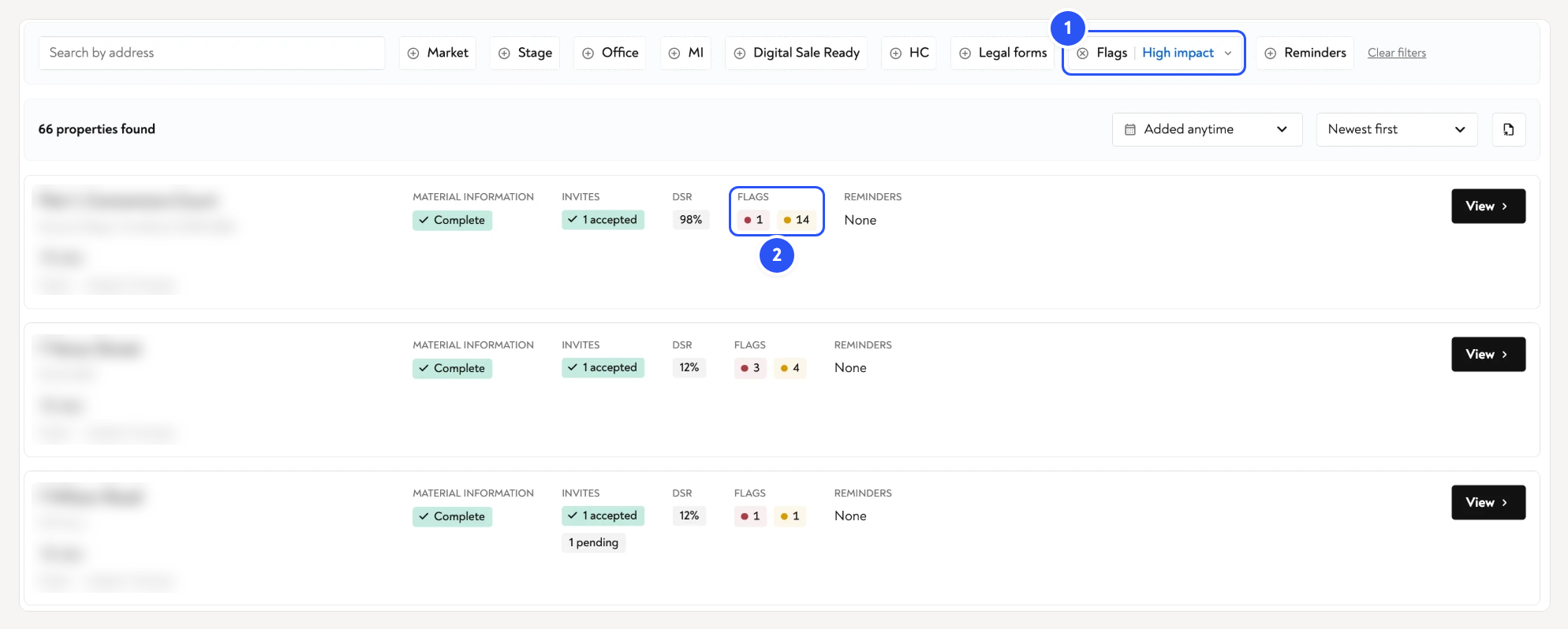
Flags filter. Choose High impact to show only properties with red flags.
Flags count. The red number is serious flags and the amber number is moderate flags. Select View on a property to see them.
Read the summary on a property
Open a property and the Flags panel on its Overview gives you the headline in a few seconds.

Counts. The number of red and amber flags on this property.
Summary. The most important issue in plain English, and how many matters remain.
Possible time impact. One bar per flag, showing how long each could add to the sale. The figure beside it is the range across all of them.
Possible cost impact. The typical cost to put the flags right, as a range.
Expand. Opens the full list of flags.
Time and cost are typical ranges for an issue of that kind, not a quote for this property.
Open a flag
The expanded list shows every flag on the property, most serious first.
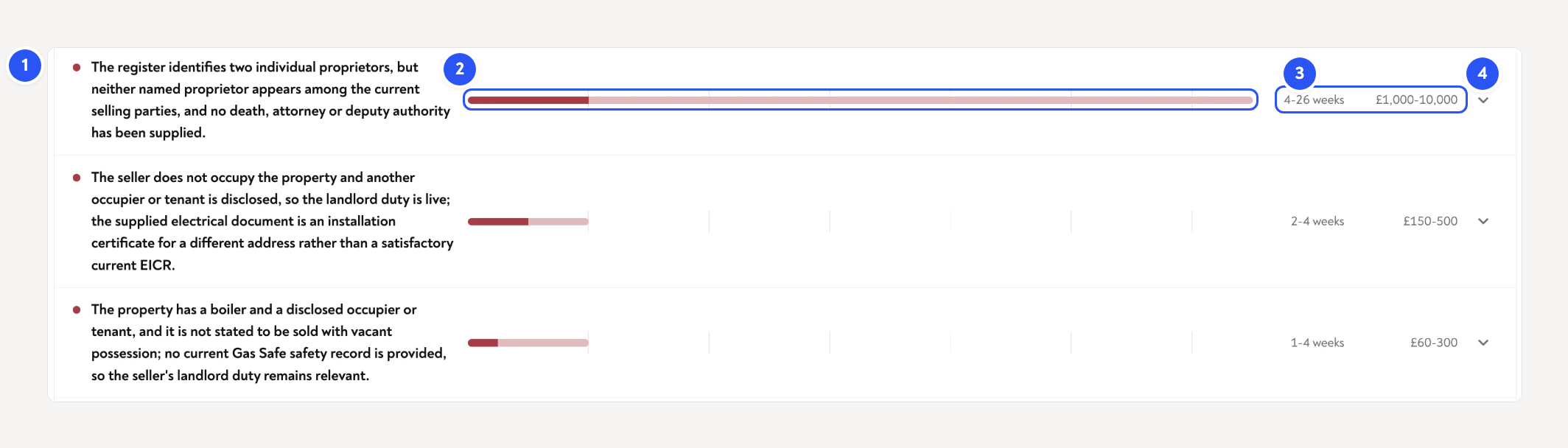
Severity. Red for serious, amber for moderate.
Time bar. How long this issue could add, on the same scale as the other flags so you can compare them.
Time and cost. The typical range for this one issue.
Open. Shows the detail for that flag.
Opening a flag shows what it means and what it is likely to cost.
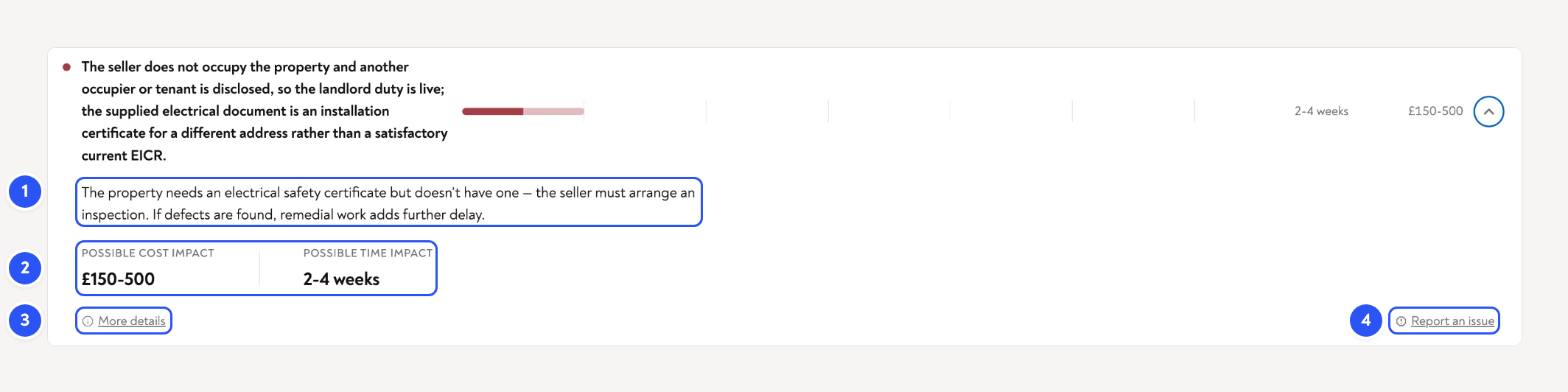
What it means. A plain-English explanation of the issue and what usually happens next.
Impact. The possible cost and time for this flag.
More details. Opens the evidence and the recommended actions.
Report an issue. Tell us if the flag looks wrong.
See the evidence
More details shows who should act and exactly what the flag is based on, so you can explain it to the seller with confidence.
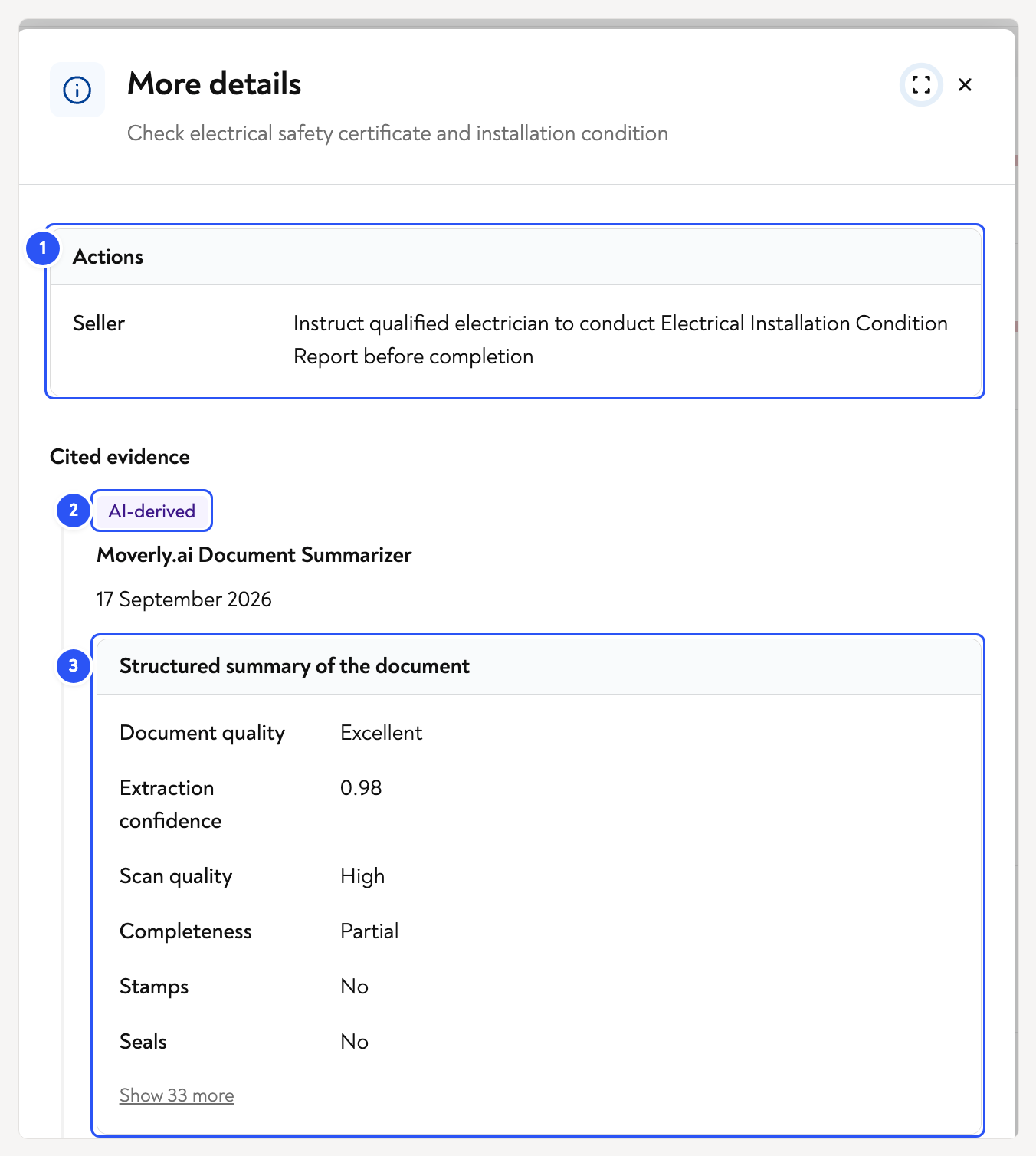
Actions. Who is best placed to resolve the flag, and what they need to do.
Source tag. Where each piece of evidence came from.
The evidence. The facts the flag rests on, such as a summary of the document that was checked.
Every piece of evidence is tagged with its source:
Official record. Taken from a source such as HM Land Registry, GOV.UK or the Valuation Office Agency.
Seller's statement. An answer the seller gave in their forms, shown as declared by them.
AI-derived. Read from a document by Moverly's AI, such as a certificate the seller uploaded.
Scroll down to About this check for the reasoning behind the flag.
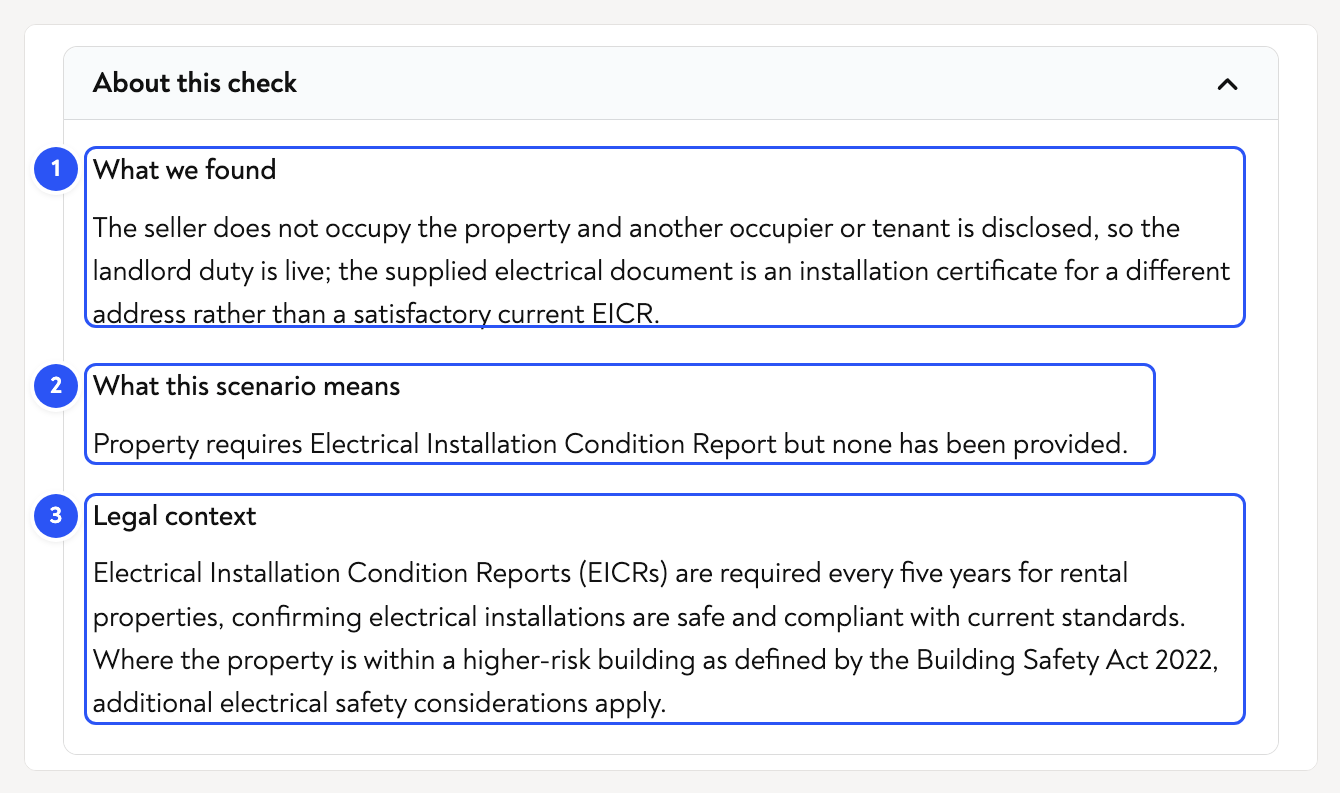
What we found. The specific facts on this property that raised the flag.
What this scenario means. The issue in one line.
Legal context. The rule or requirement behind the check.
If a flag looks wrong
Flags are generated by AI against a written conveyancing playbook. They inform your judgement rather than replace it, and every flag cites its evidence so you can check it.
If a flag does not match what you know about the property:
Open the flag.
Select Report an issue, either on the flag or at the bottom of the More details window.
Tell us what looks wrong and what you know about the property.
Common questions
When do flags appear? Once the seller has completed the material information for a listing.
Who in my agency can see flags? Everyone in your organisation who can see the property. This can be altered to certain members of the team on request.
Is this legal advice? No. Flags help you spot issues early. The seller's conveyancer still advises on the legal position.