
Connecting Apex27 to Moverly: set up the integration
Connecting Apex27 to Moverly lets you bring your properties, sellers and buyers straight across, so you do not have to add them by hand. To set it up you create an API key in your Apex27 account and add it to Moverly. It only takes a few minutes.
1. Go to API Keys in Apex27
In Apex27, head to (accountname).apex27.co.uk/admin/api-keys, replacing (accountname) with your own account name, or go to Admin, then API Keys.
2. Create the API key
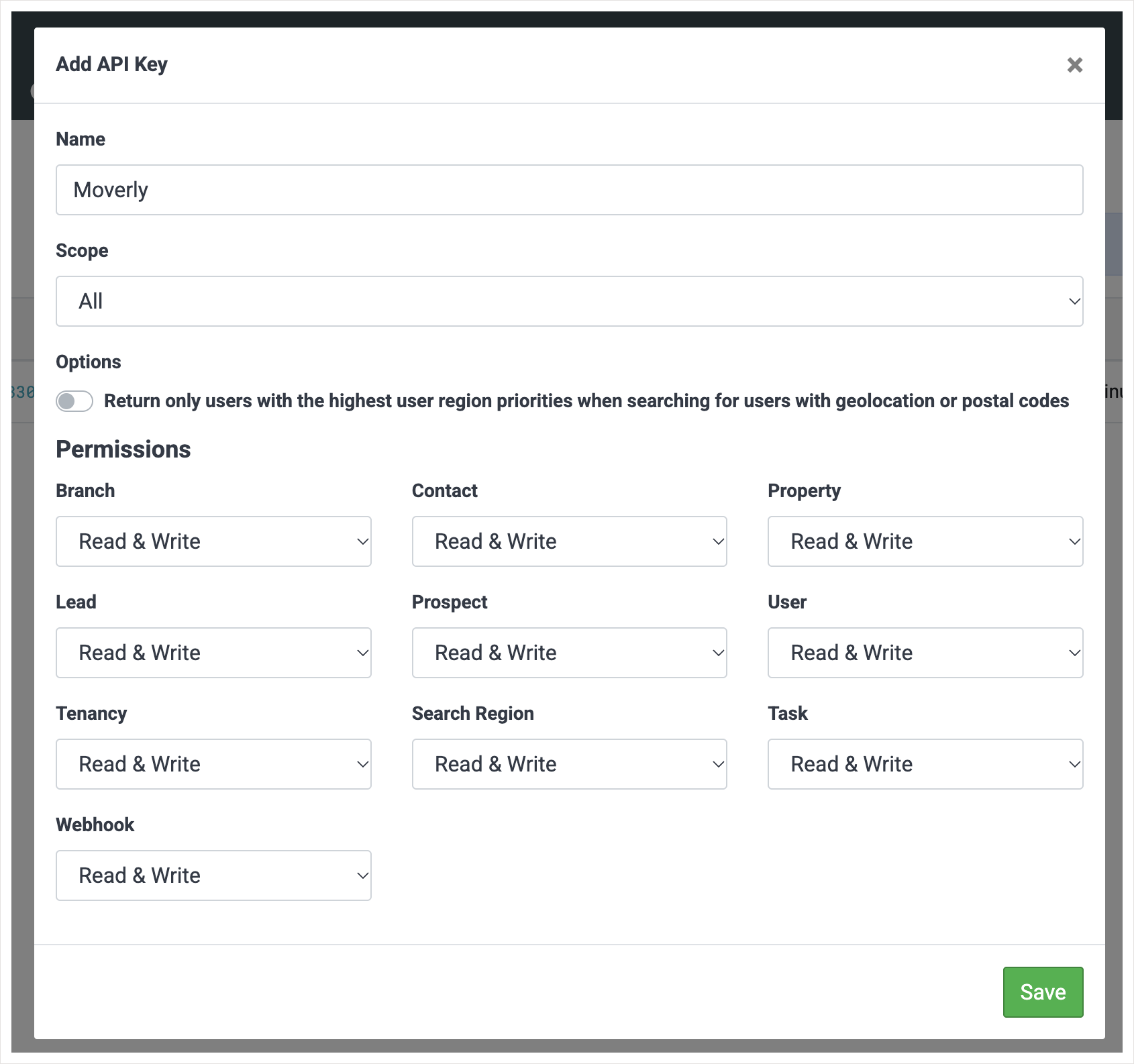
Click to add a new API key. In the Add API Key window, set the Name to Moverly. You can leave all the other settings on their defaults, which are already correct, then click Save.
3. Copy the API key
Copy the API key Apex27 generates. This key gives full access to your Apex27 data, so keep it private and only enter it in Moverly.
4. Add it in Moverly
In Moverly, go to your Integrations settings. Next to Apex27, click Add API key, paste the key in and click Connect.

Apex27 will show as Connected once the integration is set up, and you can start bringing your properties, sellers and buyers across from Apex27.