
The Overview tab: your whole transaction at a glance
The Overview tab: your whole transaction at a glance
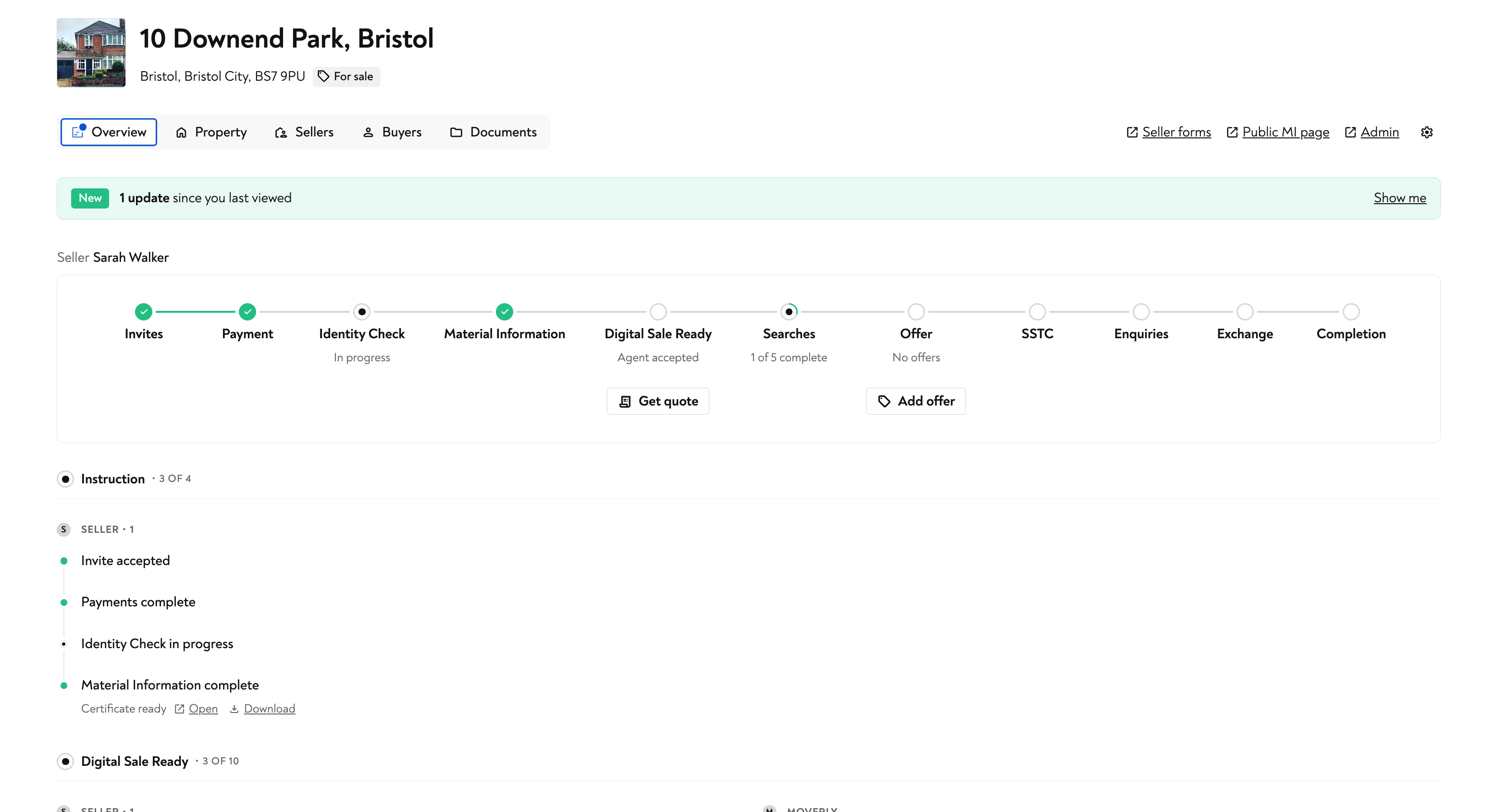
The Overview tab is the first thing you see when you open a transaction. It pulls every part of a sale into one screen, so you can tell exactly where a case stands without clicking between the Property, Sellers, Buyers and Documents tabs.
It also tells you what has changed since you last looked, so nothing slips past you.
What you can see
The progress tracker
Along the top of the transaction is a progress tracker that runs the full journey of the sale, from first invite through to completion:
Invites - whether the seller or buyer has accepted their invite
Payment - how many payments have been made
Identity Check - the status of AML and ID verification
Material Information - how many of the 15 sections are complete
Digital Sale Ready - whether the agent has accepted DSR
Searches - progress on property searches (Digital Sale Ready only)
Offer, SSTC, Enquiries, Exchange and Completion - the later stages of the sale
Each step shows a short status underneath, such as "In progress", "Agent accepted" or "1 of 5 complete", so you get the headline without opening anything.
Updates since you last viewed
When something changes on a transaction, a green New banner appears at the top of the Overview telling you how many updates there have been since you last looked. Select Show me to jump straight to what is new.
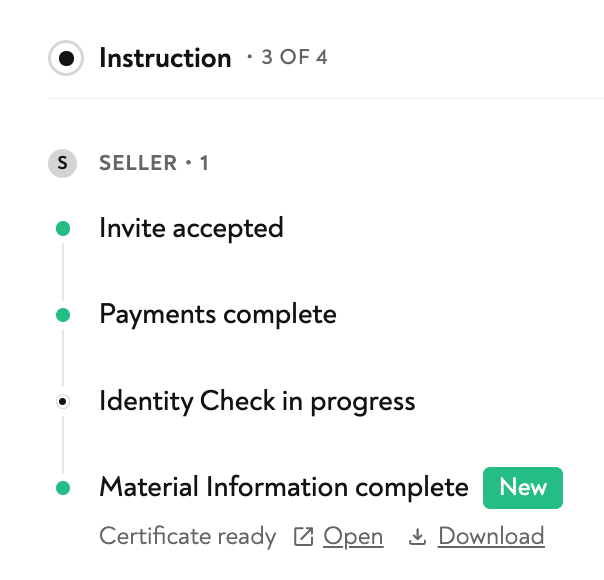
You will also see a small New tag next to the individual item that changed, for example a Material Information certificate that has just become ready.
The status checklist
Below the tracker, the same information is broken down into clear checklists grouped by stage (Instruction, Digital Sale Ready and so on) and by who is responsible (the seller, the buyer or Moverly).
A green dot means done, a half dot means in progress, and a hollow dot means not started yet. Where an action produces a document, such as a completed Material Information certificate, you can Open or Download it right from the list.
Digital Sale Ready goes further
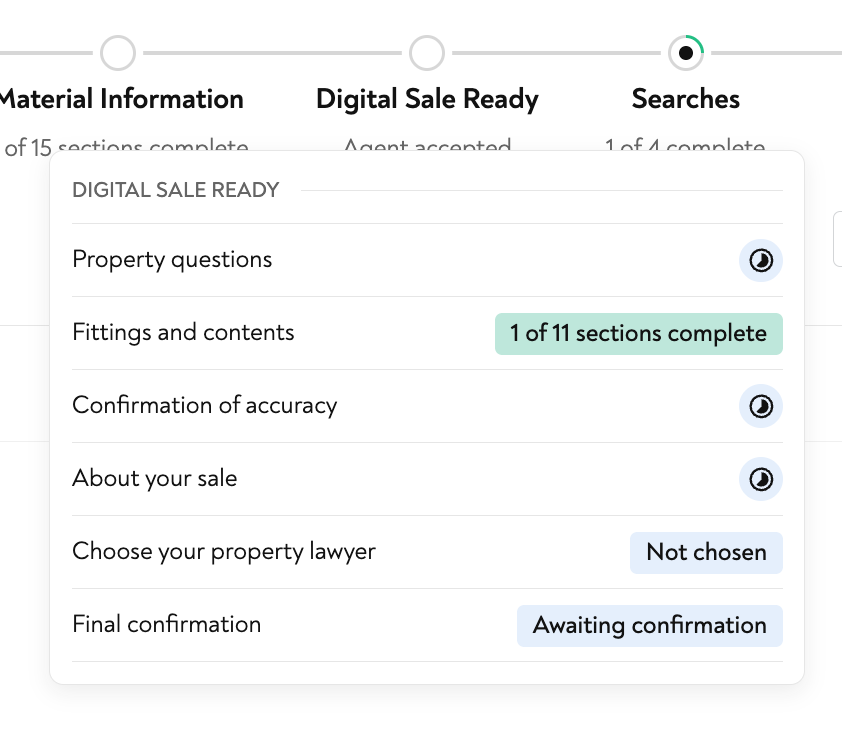
On a Digital Sale Ready transaction the Overview does more. As well as the seller forms, you can track the searches Moverly is running on your behalf, each with its own status.
Local authority search (with an estimated turnaround, for example 20 working days)
Local Land Charges
Drainage and water search
Environmental risks search
You can also see the seller's Digital Sale Ready forms in one place, including Property questions, Fittings and contents, Confirmation of accuracy, About your sale, the chosen property lawyer and the final confirmation.
Things you can do from the Overview
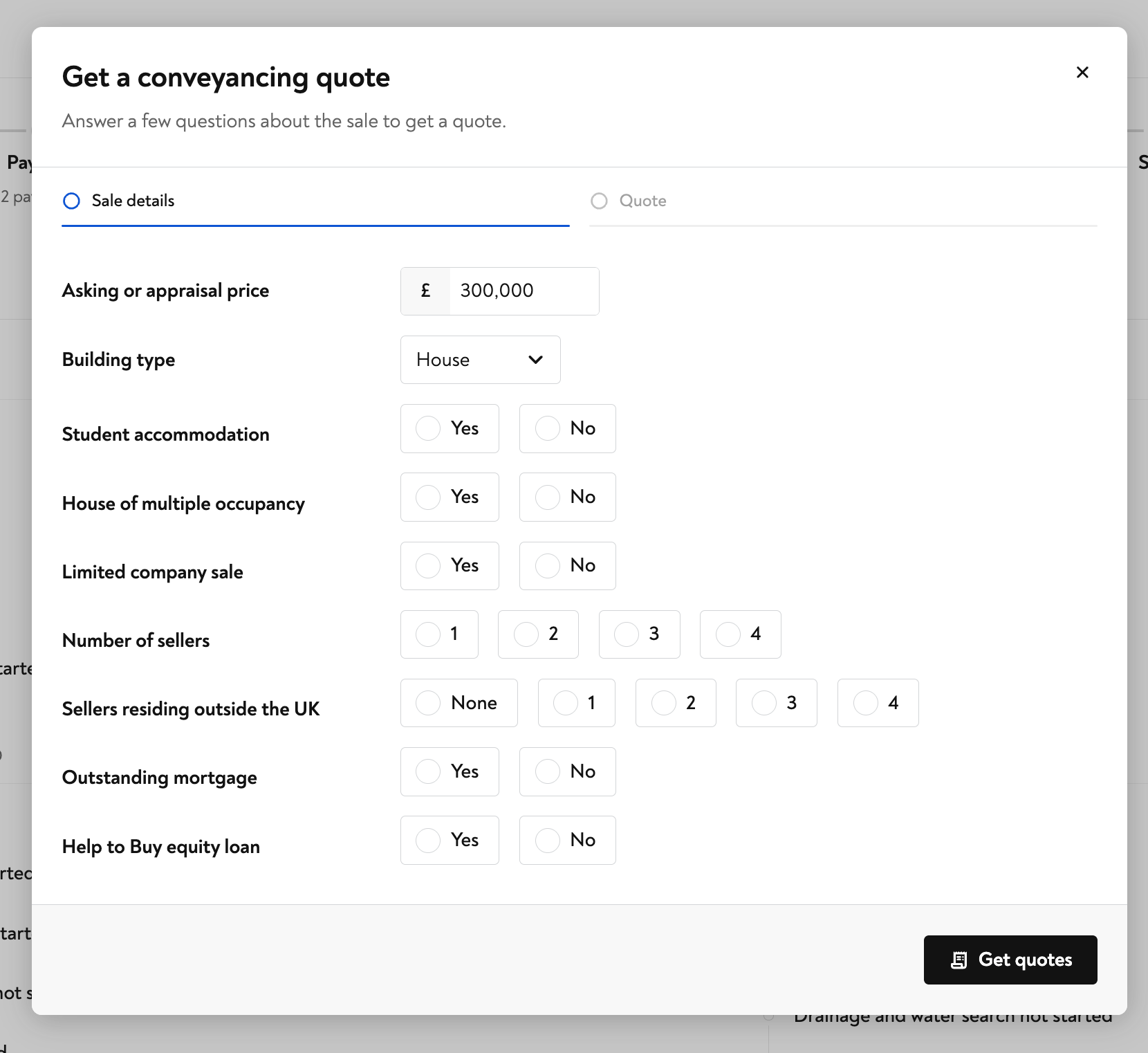
Get a conveyancing quote - select Get quote to answer a few short questions about the sale (asking price, building type, number of sellers and so on) and return an instant quote for the client.
Add an offer - select Add offer to record an offer against the property.
Open the seller forms or the public MI page using the links in the top right.
In short
The Overview tab is designed to answer one question the moment you open a case: what is happening, and what needs my attention? Everything else in the transaction is still there in the other tabs, but the Overview gives you the whole picture, and the latest changes, at a glance.