
A more visual dashboard
Your pipeline just got easier on the eye. Property images now appear across your dashboard, so you can spot a case at a glance instead of scanning a list of addresses. It's quicker to navigate, and far easier to recognise the home you're looking for.
Where the images come from
Property images are pulled automatically from the property record in your CRM — no uploading or extra work at your end.
This works for compatible CRMs (currently Reapit and Alto). If your firm uses one of these, the photos already on your listing are collected and shown against the matching property in Moverly.
Not on a compatible CRM? No problem - you can also upload images manually so they appear on the public Material Information page too.
Where you'll see them
Once connected, your property images appear in three places:
On your dashboard — each property row shows its photo, so you can find and recognise a case in seconds rather than reading down a list of addresses.
In the property's documents inside Moverly — the images sit alongside the rest of the property information.
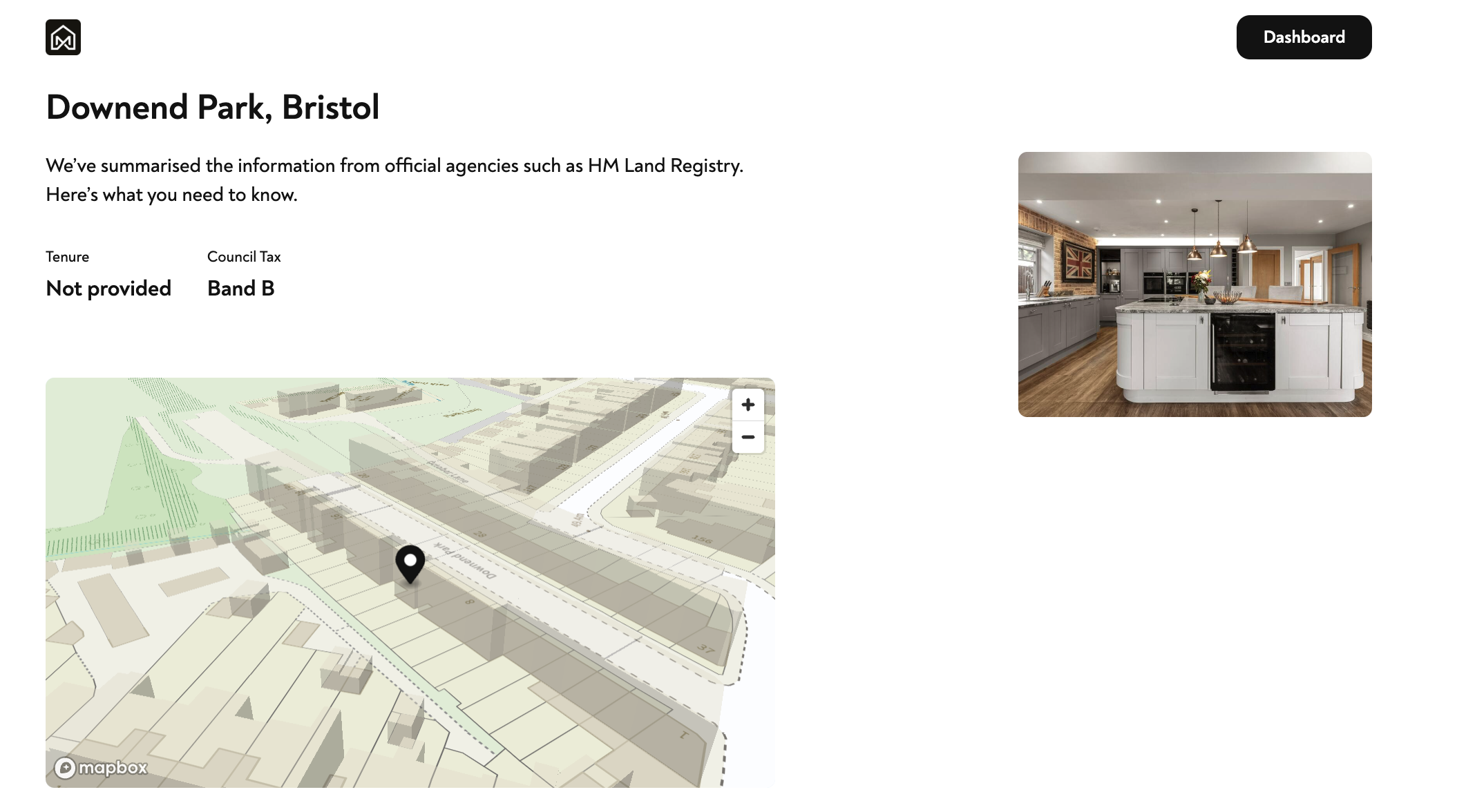
On the public Material Information page — photos are added to the public MI page too, giving buyers even more useful, recognisable detail about the home.
Turning images on or off
Images are on by default, but you're always in control.
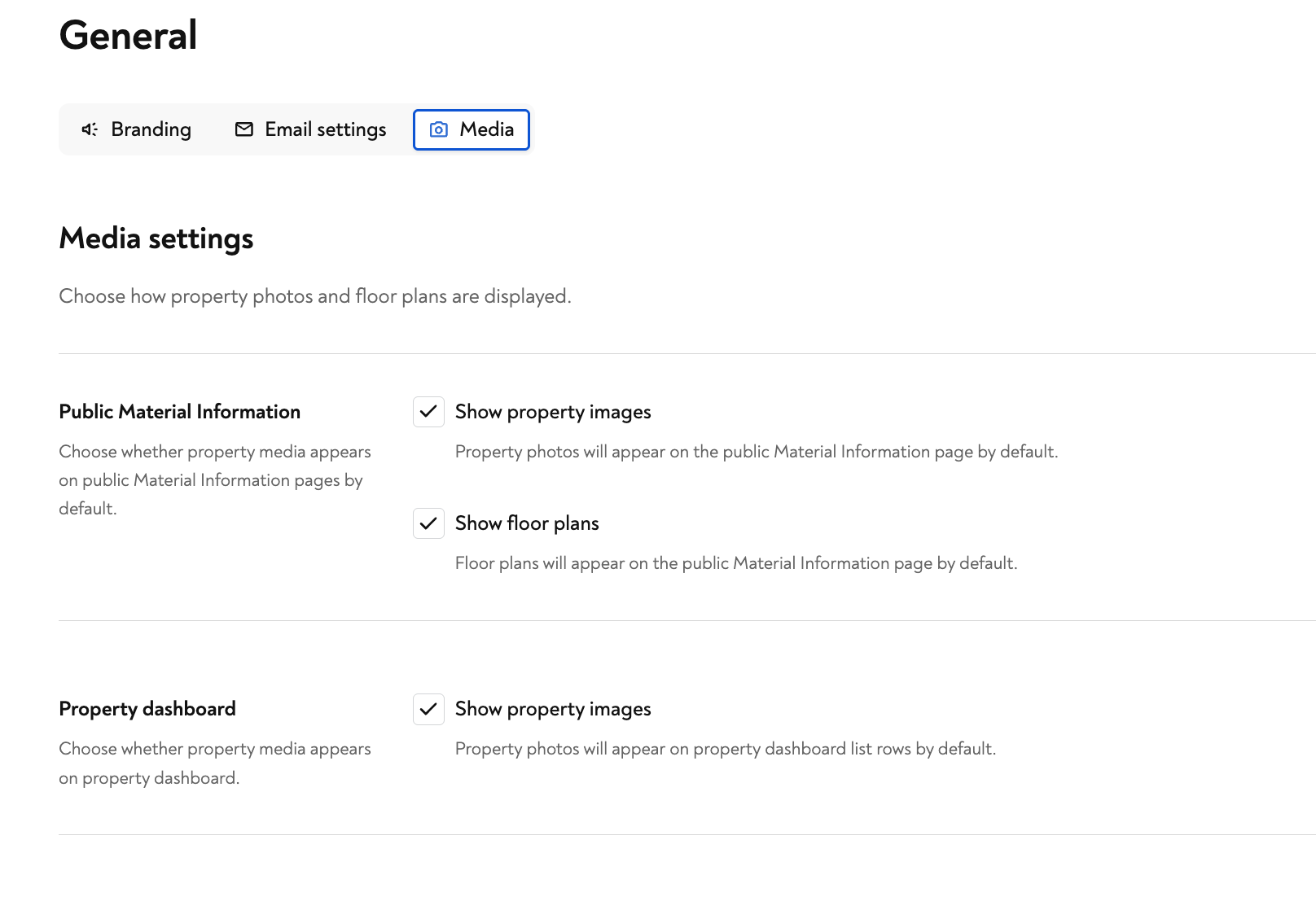
For all your properties - go to Settings → General → Media. Under Media settings you can choose whether property images (and floor plans) appear on:
your Property dashboard list rows, and
the public Material Information page.
Just tick or untick Show property images for either area.
For a single property - you can override the default for one transaction from that property's own settings, so you can hide images on an individual case without changing your firm-wide setting.